> ## Documentation Index
> Fetch the complete documentation index at: https://prowler-mintlify-55c1f1a5.mintlify.site/llms.txt
> Use this file to discover all available pages before exploring further.
> ## Agent Instructions
> Prowler product naming: Prowler App is now Prowler Local Server, and Prowler Enterprise is now Prowler Private Cloud. Always use the current names when answering. The full product reference is at /getting-started/products: Open Source projects are Prowler CLI, Prowler Local Server, Prowler Local Dashboard, and Prowler SDK; Prowler Products are Prowler Cloud, Prowler Private Cloud, Prowler Hub, Prowler Lighthouse AI, and Prowler MCP.
# Getting Started with the Image Provider
export const VersionBadge = ({version}) => {
return
Added in:
{version}
;
};
Prowler's Image provider enables comprehensive container image security scanning by integrating with [Trivy](https://trivy.dev/). This provider detects vulnerabilities, exposed secrets, and misconfigurations in container images, converting Trivy findings into Prowler's standard reporting format for unified security assessment.
## How It Works
* **Trivy integration:** Prowler leverages [Trivy](https://trivy.dev/) to scan container images for vulnerabilities, secrets, misconfigurations, and license issues.
* **Authentication:** No registry authentication is required for public images. For private registries, credentials can be provided via environment variables or manual `docker login`.
* Check the [Image Authentication](/user-guide/providers/image/authentication) page for more details.
* **Mutelist logic:** [Filtering](https://trivy.dev/latest/docs/configuration/filtering/) is handled by Trivy, not Prowler.
* **Output formats:** Results are output in the same formats as other Prowler providers (CSV, JSON, HTML, etc.).
Scan container images using Prowler Cloud
Scan container images using Prowler CLI
## Prowler Cloud
### Supported Scanners
Prowler Cloud does not support scanner selection. The vulnerability, secret, and misconfiguration scanners run automatically during each scan.
### Step 1: Access Prowler Cloud
1. Navigate to [Prowler Cloud](https://cloud.prowler.com/) or launch [Prowler Local Server](/user-guide/tutorials/prowler-app)
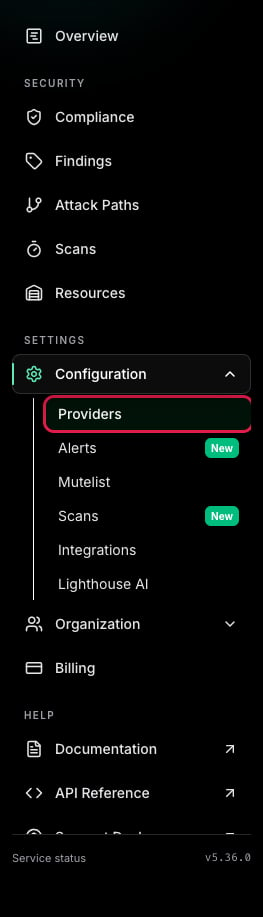
2. Navigate to "Configuration" > "Providers"
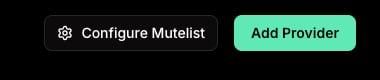
 3. Click "Add Provider"
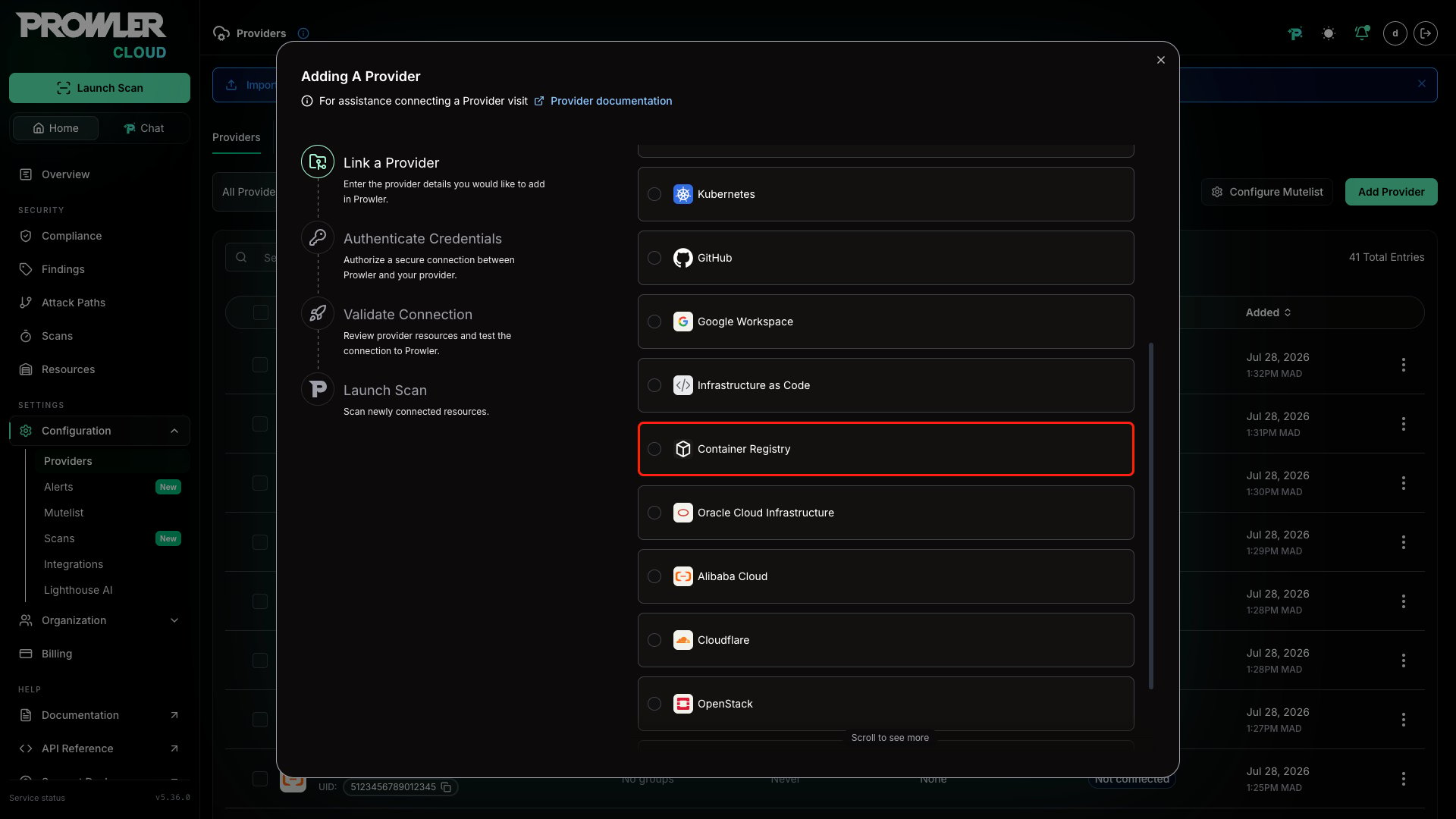
 4. Select "Container Registry"
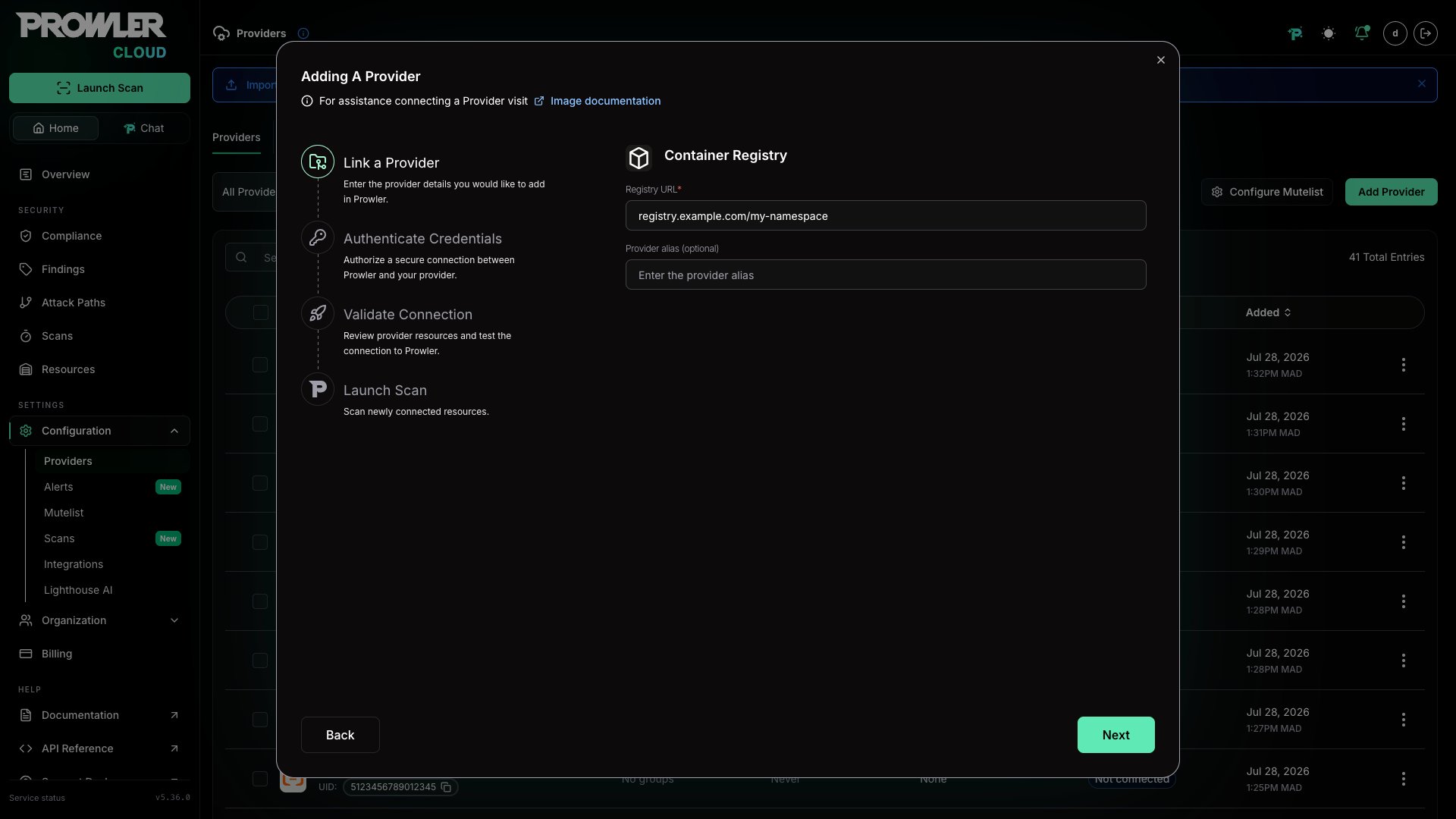
 5. Enter the container registry URL (e.g., `docker.io/myorg` or `myregistry.io`) and an optional alias, then click "Next"
 ### Step 2: Enter Authentication and Scan Filters
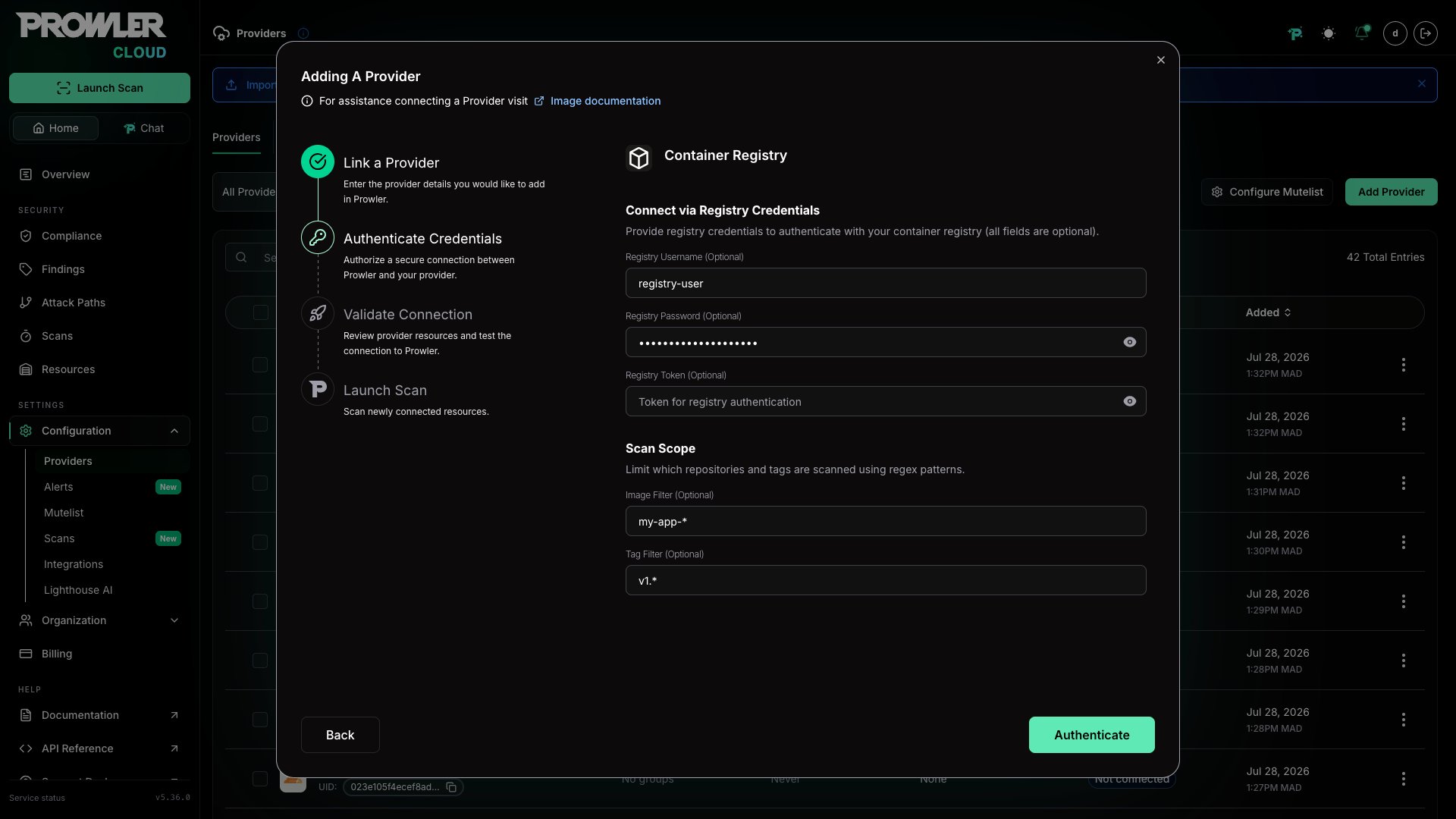
6. Optionally provide [authentication](/user-guide/providers/image/authentication) credentials for private registries, then configure the following scan filters to control which images are scanned:
* **Image filter:** A regex pattern to filter repositories by name (e.g., `^prod/.*`)
* **Tag filter:** A regex pattern to filter tags within repositories (e.g., `^(latest|v\d+\.\d+\.\d+)$`)
Then click "Next"
### Step 2: Enter Authentication and Scan Filters
6. Optionally provide [authentication](/user-guide/providers/image/authentication) credentials for private registries, then configure the following scan filters to control which images are scanned:
* **Image filter:** A regex pattern to filter repositories by name (e.g., `^prod/.*`)
* **Tag filter:** A regex pattern to filter tags within repositories (e.g., `^(latest|v\d+\.\d+\.\d+)$`)
Then click "Next"
 ### Step 3: Verify Connection & Start Scan
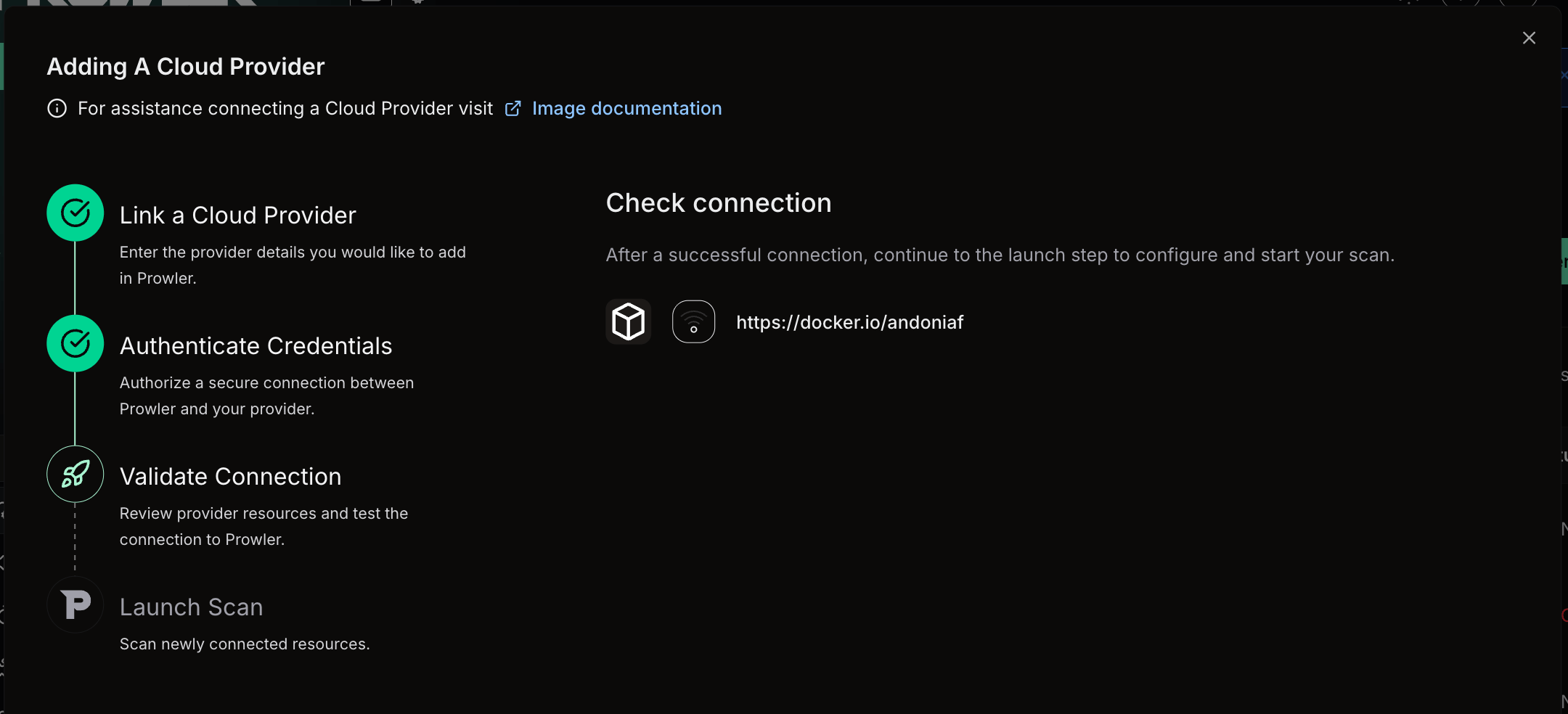
7. Review the provider configuration and click "Launch scan" to initiate the scan
### Step 3: Verify Connection & Start Scan
7. Review the provider configuration and click "Launch scan" to initiate the scan
 ## Prowler CLI
### Install Trivy
Install Trivy using one of the following methods:
```bash theme={null}
brew install trivy
```
```bash theme={null}
sudo apt-get install trivy
```
```bash theme={null}
curl -sfL https://raw.githubusercontent.com/aquasecurity/trivy/main/contrib/install.sh | sh -s -- -b /usr/local/bin
```
For additional installation methods, see the [Trivy installation guide](https://trivy.dev/latest/getting-started/installation/).
### Vulnerability Database Cache
Trivy keeps its vulnerability database in a cache directory. By default Prowler gives it a temporary one and removes it when the scan ends, so the database is downloaded again for every scan.
Set `TRIVY_CACHE_DIR` to a directory that persists and the database is downloaded once and reused:
```bash theme={null}
export TRIVY_CACHE_DIR="$HOME/.cache/trivy"
prowler image --image
```
Prowler never deletes a directory you supply. Trivy still creates and updates its cache and database files inside it.
A host with no internet access needs a pre-populated vulnerability database in a persistent directory, with `TRIVY_CACHE_DIR` pointing at it. Populate the directory on a machine that does have access and copy it across.
Trivy tries to refresh the database when it considers it stale, and that download fails without network access. Set `TRIVY_SKIP_DB_UPDATE=true` (and `TRIVY_SKIP_JAVA_DB_UPDATE=true` if Java scanning is enabled) so it uses the supplied database as is.
The database ages. A scan run against an old one reports only the vulnerabilities known when it was built, and nothing in the output says so, so keep track of when it was last refreshed.
### Supported Scanners
Prowler CLI supports the following scanners:
* [Vulnerability](https://trivy.dev/docs/latest/guide/scanner/vulnerability/)
* [Secret](https://trivy.dev/docs/latest/guide/scanner/secret/)
* [Misconfiguration](https://trivy.dev/docs/latest/guide/scanner/misconfiguration/)
* [License](https://trivy.dev/docs/latest/guide/scanner/license/)
By default, vulnerability, secret, and misconfiguration scanners run during a scan. To specify which scanners to use, refer to the [Specify Scanners](#specify-scanners) section below.
### Scan Container Images
Use the `image` argument to run Prowler with the Image provider. Specify the images to scan using the `-I` flag or an image list file.
#### Scan a Single Image
To scan a single container image:
```bash theme={null}
prowler image -I alpine:3.18
```
#### Scan Multiple Images
To scan multiple images, repeat the `-I` flag:
```bash theme={null}
prowler image -I nginx:latest -I redis:7 -I python:3.12-slim
```
#### Scan From an Image List File
For large-scale scanning, provide a file containing one image per line:
```bash theme={null}
prowler image --image-list images.txt
```
The file supports comments (lines starting with `#`) and blank lines:
```text theme={null}
# Production images
nginx:1.25
redis:7-alpine
# Development images
python:3.12-slim
node:20-bookworm
```
Image list files are limited to a maximum of 10,000 lines. Individual image names exceeding 500 characters are automatically skipped with a warning.
Image names must follow the Open Container Initiative (OCI) reference format. Valid names start with an alphanumeric character and contain only letters, digits, periods, hyphens, underscores, slashes, colons, and `@` symbols. Names containing shell metacharacters (`;`, `|`, `&`, `$`, `` ` ``) are rejected to prevent command injection.
Valid examples:
* **Standard tag:** `alpine:3.18`
* **Custom registry:** `myregistry.io/myapp:v1.0`
* **SHA digest:** `ghcr.io/org/image@sha256:abc123...`
#### Specify Scanners
To select which scanners Trivy runs, use the `--scanners` option:
```bash theme={null}
# Vulnerability scanning only
prowler image -I alpine:3.18 --scanners vuln
# All available scanners
prowler image -I alpine:3.18 --scanners vuln secret misconfig license
```
#### Image Config Scanners
To scan Dockerfile-level metadata for misconfigurations or embedded secrets, use the `--image-config-scanners` option:
```bash theme={null}
# Scan Dockerfile for misconfigurations
prowler image -I alpine:3.18 --image-config-scanners misconfig
# Scan Dockerfile for both misconfigurations and secrets
prowler image -I alpine:3.18 --image-config-scanners misconfig secret
```
Available image config scanners:
* **misconfig**: Detects Dockerfile misconfigurations (e.g., running as root, missing health checks)
* **secret**: Identifies secrets embedded in Dockerfile instructions
Image config scanners are disabled by default. This option is independent from `--scanners` and specifically targets the image configuration (Dockerfile) rather than the image filesystem.
#### Filter by Severity
To filter findings by severity level, use the `--trivy-severity` option:
```bash theme={null}
# Only critical and high severity findings
prowler image -I alpine:3.18 --trivy-severity CRITICAL HIGH
```
Available severity levels: `CRITICAL`, `HIGH`, `MEDIUM`, `LOW`, `UNKNOWN`.
#### Ignore Unfixed Vulnerabilities
To exclude vulnerabilities without available fixes:
```bash theme={null}
prowler image -I alpine:3.18 --ignore-unfixed
```
#### Configure Scan Timeout
To adjust the scan timeout for large images or slow network conditions, use the `--timeout` option:
```bash theme={null}
prowler image -I large-image:latest --timeout 10m
```
The timeout accepts values in seconds (`s`), minutes (`m`), or hours (`h`). Default: `5m`.
### Registry Scan Mode
Registry Scan Mode enumerates and scans all images from an OCI-compatible registry, Docker Hub namespace, or Amazon ECR registry. To activate it, use the `--registry` flag with the registry URL:
```bash theme={null}
prowler image --registry myregistry.io
```
#### Discover Available Images
To list all repositories and tags available in the registry without running a scan, use the `--registry-list` flag. This is useful for discovering image names and tags before building filter regexes:
```bash theme={null}
prowler image --registry myregistry.io --registry-list
```
Example output:
```text theme={null}
Registry: myregistry.io (3 repositories, 8 images)
api-service (2 tags)
latest, v3.1
hub-scanner (3 tags)
latest, v1.0, v2.0
web-frontend (3 tags)
latest, v1.0, v2.0
```
Filters can be combined with `--registry-list` to preview the results before scanning:
```bash theme={null}
prowler image --registry myregistry.io --registry-list --image-filter "api.*"
```
#### Filter Repositories
To filter repositories by name during enumeration, use the `--image-filter` flag with a Python regex pattern (matched via `re.search`):
```bash theme={null}
# Scan only repositories starting with "prod/"
prowler image --registry myregistry.io --image-filter "^prod/"
```
#### Filter Tags
To filter tags during enumeration, use the `--tag-filter` flag with a Python regex pattern:
```bash theme={null}
# Scan only semantic version tags
prowler image --registry myregistry.io --tag-filter "^v\d+\.\d+\.\d+$"
```
Both filters can be combined:
```bash theme={null}
prowler image --registry myregistry.io --image-filter "^prod/" --tag-filter "^(latest|v\d+)"
```
#### Limit the Number of Images
To prevent accidentally scanning a large number of images, use the `--max-images` flag. The scan aborts if the discovered image count exceeds the limit:
```bash theme={null}
prowler image --registry myregistry.io --max-images 10
```
Setting `--max-images` to `0` (default) disables the limit.
When `--registry-list` is active, the `--max-images` limit is not enforced because no scan is performed.
#### Skip TLS Verification
To connect to registries with self-signed certificates, use the `--registry-insecure` flag:
```bash theme={null}
prowler image --registry internal-registry.local --registry-insecure
```
Skipping TLS verification disables certificate validation for registry connections, including the Trivy image pull (`TRIVY_INSECURE`). Use this flag only for trusted internal registries with self-signed certificates.
#### On-Premises Registries and Private Networks
By default, Prowler rejects registry-provided URLs (token endpoints, pagination links) that resolve to non-public addresses, as an SSRF defense. On-premises registries live on private networks by definition, so to scan them declare the trusted ranges explicitly:
```bash theme={null}
export PROWLER_IMAGE_PROVIDER_ALLOWED_PRIVATE_NETWORKS="192.168.65.254/32,10.20.0.0/16"
```
The value is a comma-separated list of IPs and CIDRs. A resolved address inside an allowlisted range is permitted; every other non-public address stays blocked, so link-local (`169.254.169.254`), loopback, and the rest of the internal network remain protected. The variable applies to registry enumeration and to the connection test. Malformed entries fail at startup, and a non-empty allowlist is logged as a relaxed security control. When unset, behavior is unchanged: only public addresses are followed.
#### Supported Registries
Registry Scan Mode supports the following registry types:
* **OCI-compatible registries:** Any registry implementing the OCI Distribution Specification (e.g., Harbor, GitLab Container Registry, GitHub Container Registry).
* **Docker Hub:** Specify a namespace with `--registry docker.io/{org_or_user}`. Public namespaces can be scanned without credentials; authenticated access is used automatically when `REGISTRY_USERNAME` and `REGISTRY_PASSWORD` are set.
* **Amazon ECR:** Use the full ECR endpoint URL (e.g., `123456789.dkr.ecr.us-east-1.amazonaws.com`). Authentication is handled via AWS credentials.
### Authentication for Private Registries
To scan images from private registries, the Image provider supports three authentication methods. Prowler uses the first available method in this priority order:
#### 1. Basic Authentication (Environment Variables)
To authenticate with a username and password, set the `REGISTRY_USERNAME` and `REGISTRY_PASSWORD` environment variables. Prowler passes these credentials to Trivy, which handles authentication with the registry transparently:
```bash theme={null}
export REGISTRY_USERNAME="myuser"
export REGISTRY_PASSWORD="mypassword"
prowler image -I myregistry.io/myapp:v1.0
```
Both variables must be set for this method to activate.
#### 2. Token-Based Authentication
To authenticate using a registry token (such as a bearer or OAuth2 token), set the `REGISTRY_TOKEN` environment variable. Prowler passes the token directly to Trivy:
```bash theme={null}
export REGISTRY_TOKEN="my-registry-token"
prowler image -I myregistry.io/myapp:v1.0
```
This method is useful for registries that support token-based access without requiring a username and password.
#### 3. Manual Docker Login (Fallback)
If no environment variables are set, Prowler relies on existing credentials in Docker's credential store (`~/.docker/config.json`). To configure credentials manually before scanning:
```bash theme={null}
docker login myregistry.io
prowler image -I myregistry.io/myapp:v1.0
```
Credentials provided via environment variables are only passed to the Trivy subprocess and are not persisted beyond the scan.
### Troubleshooting Common Scan Errors
The Image provider categorizes common Trivy errors with actionable guidance:
* **Authentication failure (401/403):** Registry credentials are missing or invalid. Verify the `REGISTRY_USERNAME`/`REGISTRY_PASSWORD` or `REGISTRY_TOKEN` environment variables, or run `docker login` for the target registry and retry the scan.
* **Image not found (404):** The specified image name, tag, or registry is incorrect. Verify the image reference exists and is accessible.
* **Rate limited (429):** The container registry is throttling requests. Wait before retrying, or authenticate to increase rate limits.
* **Network issue:** Trivy cannot reach the registry due to connectivity problems. Check network access, DNS resolution, and firewall rules.
## Prowler CLI
### Install Trivy
Install Trivy using one of the following methods:
```bash theme={null}
brew install trivy
```
```bash theme={null}
sudo apt-get install trivy
```
```bash theme={null}
curl -sfL https://raw.githubusercontent.com/aquasecurity/trivy/main/contrib/install.sh | sh -s -- -b /usr/local/bin
```
For additional installation methods, see the [Trivy installation guide](https://trivy.dev/latest/getting-started/installation/).
### Vulnerability Database Cache
Trivy keeps its vulnerability database in a cache directory. By default Prowler gives it a temporary one and removes it when the scan ends, so the database is downloaded again for every scan.
Set `TRIVY_CACHE_DIR` to a directory that persists and the database is downloaded once and reused:
```bash theme={null}
export TRIVY_CACHE_DIR="$HOME/.cache/trivy"
prowler image --image
```
Prowler never deletes a directory you supply. Trivy still creates and updates its cache and database files inside it.
A host with no internet access needs a pre-populated vulnerability database in a persistent directory, with `TRIVY_CACHE_DIR` pointing at it. Populate the directory on a machine that does have access and copy it across.
Trivy tries to refresh the database when it considers it stale, and that download fails without network access. Set `TRIVY_SKIP_DB_UPDATE=true` (and `TRIVY_SKIP_JAVA_DB_UPDATE=true` if Java scanning is enabled) so it uses the supplied database as is.
The database ages. A scan run against an old one reports only the vulnerabilities known when it was built, and nothing in the output says so, so keep track of when it was last refreshed.
### Supported Scanners
Prowler CLI supports the following scanners:
* [Vulnerability](https://trivy.dev/docs/latest/guide/scanner/vulnerability/)
* [Secret](https://trivy.dev/docs/latest/guide/scanner/secret/)
* [Misconfiguration](https://trivy.dev/docs/latest/guide/scanner/misconfiguration/)
* [License](https://trivy.dev/docs/latest/guide/scanner/license/)
By default, vulnerability, secret, and misconfiguration scanners run during a scan. To specify which scanners to use, refer to the [Specify Scanners](#specify-scanners) section below.
### Scan Container Images
Use the `image` argument to run Prowler with the Image provider. Specify the images to scan using the `-I` flag or an image list file.
#### Scan a Single Image
To scan a single container image:
```bash theme={null}
prowler image -I alpine:3.18
```
#### Scan Multiple Images
To scan multiple images, repeat the `-I` flag:
```bash theme={null}
prowler image -I nginx:latest -I redis:7 -I python:3.12-slim
```
#### Scan From an Image List File
For large-scale scanning, provide a file containing one image per line:
```bash theme={null}
prowler image --image-list images.txt
```
The file supports comments (lines starting with `#`) and blank lines:
```text theme={null}
# Production images
nginx:1.25
redis:7-alpine
# Development images
python:3.12-slim
node:20-bookworm
```
Image list files are limited to a maximum of 10,000 lines. Individual image names exceeding 500 characters are automatically skipped with a warning.
Image names must follow the Open Container Initiative (OCI) reference format. Valid names start with an alphanumeric character and contain only letters, digits, periods, hyphens, underscores, slashes, colons, and `@` symbols. Names containing shell metacharacters (`;`, `|`, `&`, `$`, `` ` ``) are rejected to prevent command injection.
Valid examples:
* **Standard tag:** `alpine:3.18`
* **Custom registry:** `myregistry.io/myapp:v1.0`
* **SHA digest:** `ghcr.io/org/image@sha256:abc123...`
#### Specify Scanners
To select which scanners Trivy runs, use the `--scanners` option:
```bash theme={null}
# Vulnerability scanning only
prowler image -I alpine:3.18 --scanners vuln
# All available scanners
prowler image -I alpine:3.18 --scanners vuln secret misconfig license
```
#### Image Config Scanners
To scan Dockerfile-level metadata for misconfigurations or embedded secrets, use the `--image-config-scanners` option:
```bash theme={null}
# Scan Dockerfile for misconfigurations
prowler image -I alpine:3.18 --image-config-scanners misconfig
# Scan Dockerfile for both misconfigurations and secrets
prowler image -I alpine:3.18 --image-config-scanners misconfig secret
```
Available image config scanners:
* **misconfig**: Detects Dockerfile misconfigurations (e.g., running as root, missing health checks)
* **secret**: Identifies secrets embedded in Dockerfile instructions
Image config scanners are disabled by default. This option is independent from `--scanners` and specifically targets the image configuration (Dockerfile) rather than the image filesystem.
#### Filter by Severity
To filter findings by severity level, use the `--trivy-severity` option:
```bash theme={null}
# Only critical and high severity findings
prowler image -I alpine:3.18 --trivy-severity CRITICAL HIGH
```
Available severity levels: `CRITICAL`, `HIGH`, `MEDIUM`, `LOW`, `UNKNOWN`.
#### Ignore Unfixed Vulnerabilities
To exclude vulnerabilities without available fixes:
```bash theme={null}
prowler image -I alpine:3.18 --ignore-unfixed
```
#### Configure Scan Timeout
To adjust the scan timeout for large images or slow network conditions, use the `--timeout` option:
```bash theme={null}
prowler image -I large-image:latest --timeout 10m
```
The timeout accepts values in seconds (`s`), minutes (`m`), or hours (`h`). Default: `5m`.
### Registry Scan Mode
Registry Scan Mode enumerates and scans all images from an OCI-compatible registry, Docker Hub namespace, or Amazon ECR registry. To activate it, use the `--registry` flag with the registry URL:
```bash theme={null}
prowler image --registry myregistry.io
```
#### Discover Available Images
To list all repositories and tags available in the registry without running a scan, use the `--registry-list` flag. This is useful for discovering image names and tags before building filter regexes:
```bash theme={null}
prowler image --registry myregistry.io --registry-list
```
Example output:
```text theme={null}
Registry: myregistry.io (3 repositories, 8 images)
api-service (2 tags)
latest, v3.1
hub-scanner (3 tags)
latest, v1.0, v2.0
web-frontend (3 tags)
latest, v1.0, v2.0
```
Filters can be combined with `--registry-list` to preview the results before scanning:
```bash theme={null}
prowler image --registry myregistry.io --registry-list --image-filter "api.*"
```
#### Filter Repositories
To filter repositories by name during enumeration, use the `--image-filter` flag with a Python regex pattern (matched via `re.search`):
```bash theme={null}
# Scan only repositories starting with "prod/"
prowler image --registry myregistry.io --image-filter "^prod/"
```
#### Filter Tags
To filter tags during enumeration, use the `--tag-filter` flag with a Python regex pattern:
```bash theme={null}
# Scan only semantic version tags
prowler image --registry myregistry.io --tag-filter "^v\d+\.\d+\.\d+$"
```
Both filters can be combined:
```bash theme={null}
prowler image --registry myregistry.io --image-filter "^prod/" --tag-filter "^(latest|v\d+)"
```
#### Limit the Number of Images
To prevent accidentally scanning a large number of images, use the `--max-images` flag. The scan aborts if the discovered image count exceeds the limit:
```bash theme={null}
prowler image --registry myregistry.io --max-images 10
```
Setting `--max-images` to `0` (default) disables the limit.
When `--registry-list` is active, the `--max-images` limit is not enforced because no scan is performed.
#### Skip TLS Verification
To connect to registries with self-signed certificates, use the `--registry-insecure` flag:
```bash theme={null}
prowler image --registry internal-registry.local --registry-insecure
```
Skipping TLS verification disables certificate validation for registry connections, including the Trivy image pull (`TRIVY_INSECURE`). Use this flag only for trusted internal registries with self-signed certificates.
#### On-Premises Registries and Private Networks
By default, Prowler rejects registry-provided URLs (token endpoints, pagination links) that resolve to non-public addresses, as an SSRF defense. On-premises registries live on private networks by definition, so to scan them declare the trusted ranges explicitly:
```bash theme={null}
export PROWLER_IMAGE_PROVIDER_ALLOWED_PRIVATE_NETWORKS="192.168.65.254/32,10.20.0.0/16"
```
The value is a comma-separated list of IPs and CIDRs. A resolved address inside an allowlisted range is permitted; every other non-public address stays blocked, so link-local (`169.254.169.254`), loopback, and the rest of the internal network remain protected. The variable applies to registry enumeration and to the connection test. Malformed entries fail at startup, and a non-empty allowlist is logged as a relaxed security control. When unset, behavior is unchanged: only public addresses are followed.
#### Supported Registries
Registry Scan Mode supports the following registry types:
* **OCI-compatible registries:** Any registry implementing the OCI Distribution Specification (e.g., Harbor, GitLab Container Registry, GitHub Container Registry).
* **Docker Hub:** Specify a namespace with `--registry docker.io/{org_or_user}`. Public namespaces can be scanned without credentials; authenticated access is used automatically when `REGISTRY_USERNAME` and `REGISTRY_PASSWORD` are set.
* **Amazon ECR:** Use the full ECR endpoint URL (e.g., `123456789.dkr.ecr.us-east-1.amazonaws.com`). Authentication is handled via AWS credentials.
### Authentication for Private Registries
To scan images from private registries, the Image provider supports three authentication methods. Prowler uses the first available method in this priority order:
#### 1. Basic Authentication (Environment Variables)
To authenticate with a username and password, set the `REGISTRY_USERNAME` and `REGISTRY_PASSWORD` environment variables. Prowler passes these credentials to Trivy, which handles authentication with the registry transparently:
```bash theme={null}
export REGISTRY_USERNAME="myuser"
export REGISTRY_PASSWORD="mypassword"
prowler image -I myregistry.io/myapp:v1.0
```
Both variables must be set for this method to activate.
#### 2. Token-Based Authentication
To authenticate using a registry token (such as a bearer or OAuth2 token), set the `REGISTRY_TOKEN` environment variable. Prowler passes the token directly to Trivy:
```bash theme={null}
export REGISTRY_TOKEN="my-registry-token"
prowler image -I myregistry.io/myapp:v1.0
```
This method is useful for registries that support token-based access without requiring a username and password.
#### 3. Manual Docker Login (Fallback)
If no environment variables are set, Prowler relies on existing credentials in Docker's credential store (`~/.docker/config.json`). To configure credentials manually before scanning:
```bash theme={null}
docker login myregistry.io
prowler image -I myregistry.io/myapp:v1.0
```
Credentials provided via environment variables are only passed to the Trivy subprocess and are not persisted beyond the scan.
### Troubleshooting Common Scan Errors
The Image provider categorizes common Trivy errors with actionable guidance:
* **Authentication failure (401/403):** Registry credentials are missing or invalid. Verify the `REGISTRY_USERNAME`/`REGISTRY_PASSWORD` or `REGISTRY_TOKEN` environment variables, or run `docker login` for the target registry and retry the scan.
* **Image not found (404):** The specified image name, tag, or registry is incorrect. Verify the image reference exists and is accessible.
* **Rate limited (429):** The container registry is throttling requests. Wait before retrying, or authenticate to increase rate limits.
* **Network issue:** Trivy cannot reach the registry due to connectivity problems. Check network access, DNS resolution, and firewall rules.